Playing media
Media menu
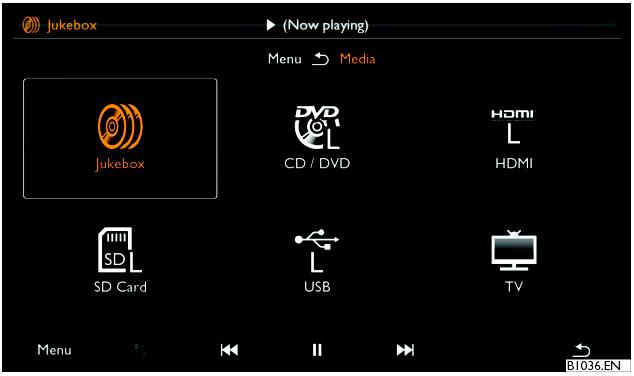
There are 6 possible media sources that can be accessed using the RSE system.
The
Jukebox is available individually to both sides of the RSE system.
►The
TV source is a shared source, available to each user.
►Each media loader supports the following sources:
All media sources will be shown on the display screen. Any sources which are currently unavailable will be displayed in grey.
Select the desired source by highlighting and tapping to select. The media will start playing automatically.
Dependent upon the currently selected source, the following function buttons may appear on the toolbar at the bottom of the display screen:

- Displays the currently playing media and, dependent upon the current media playing, toggles between ‘picture-in-picture’ and full screen mode.

- Plays the currently selected or paused media.

- Pauses the currently playing media.

- A brief press will skip to the previous track or chapter. A longer press (of approximately 2 seconds), will fast reverse any currently playing media. A subsequent long press will increase the speed, with the next subsequent long press resuming normal playback speed. Pressing

will also resume normal playback speed.

- A brief press will skips to the next track or chapter. A longer press (of approximately 2 seconds), will fast forward any currently playing media. A subsequent long press will increase the speed, with the next subsequent long press resuming normal playback speed. Pressing

will also resume normal playback speed.
Selection - Opens the Selection menu.
Extras - Opens the Extras menu.
Dependent upon the currently selected source, the Extras menu may contain the following options:
Repeat - Repeats the currently selected file. An icon will be displayed on the upper toolbar.
Repeat track - Repeats the currently selected track. An icon will be displayed on the upper toolbar.
Repeat folder - Repeat the contents of the currently selected folder. An icon will be displayed on the upper toolbar.
Mix - Plays the content of the selected folder (if the Repeat folder option has been selected) or device in a random order. An icon will be displayed on the upper toolbar.
Picture format - Enables the aspect ratio of the display screen to be adjusted.
Brightness - Enables the brightness of the display screen to be adjusted using a slider.
Copy all device content to Jukebox - Copies all content from the currently selected device to the Jukebox.
Title menu - Displays the Title menu of a DVD, which can be used to enable subtitles.
Title / Chapter List - Displays the Title/Chapter list of a DVD.
Information - Displays information about the selected content, such as file size, genre, artist, etc.
- Related Topics